ANDROID

Download mRetinaAI for Android

On‑device OCT & FFA decision support, case generation, and offline privacy — now on Android.

All processing happens locally on your device — no cloud, no patient data upload.
What's inside

mRetinaAI for Android brings the same offline, clinic‑ready toolkit you use on Android — optimized for fast chair‑time workflows and private, on‑device processing.

Case Generator

  • Build structured cases across 20+ macular entities with guided fields and ready‑to‑share assessments.
  • Generate succinct plans you can adjust in seconds and manage your patients efficiently.

OCT Classifier

  • On‑device prediction focused on outcomes (not raw feature extraction) to support triage and planning.
  • Condition‑level performance includes DME 70%, RVO 82.4%, AMD 96.8%, VMA 78%, Pachychoroid 82.1%, HRD 80.6%.

FFA Classifier

  • Offline angiography support with up to 84.5% overall accuracy.
  • Condition‑level performance includes DR 76.2%, RVO 98.1%, AMD 80%, CSCR 90.9%.
On‑device Offline Clinic‑ready No cloud

🤖 How to Install & Activate (Android)

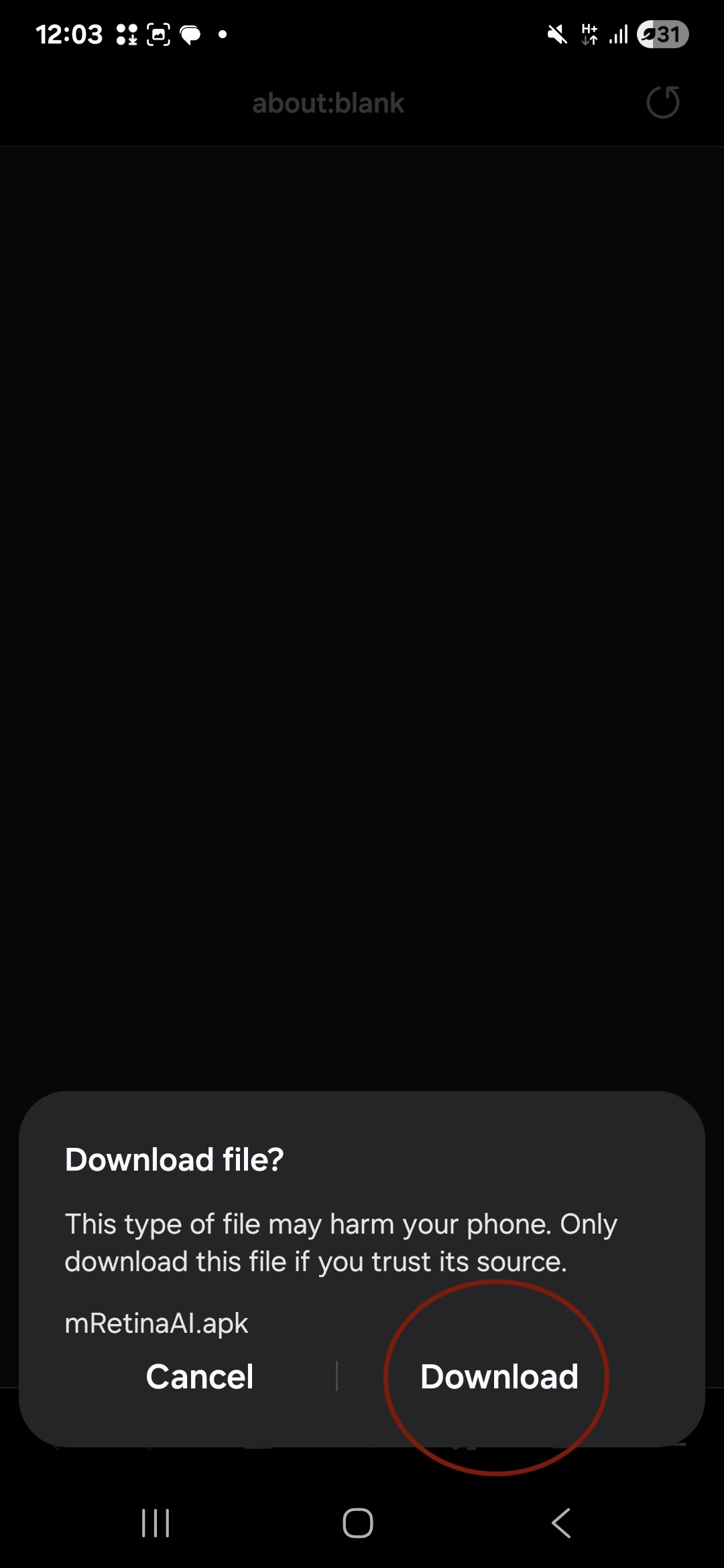
  1. Start the download. Tap the download button and, when prompted by your browser, choose Download for the mRetinaAI APK. Ignore any "Cancel" option.
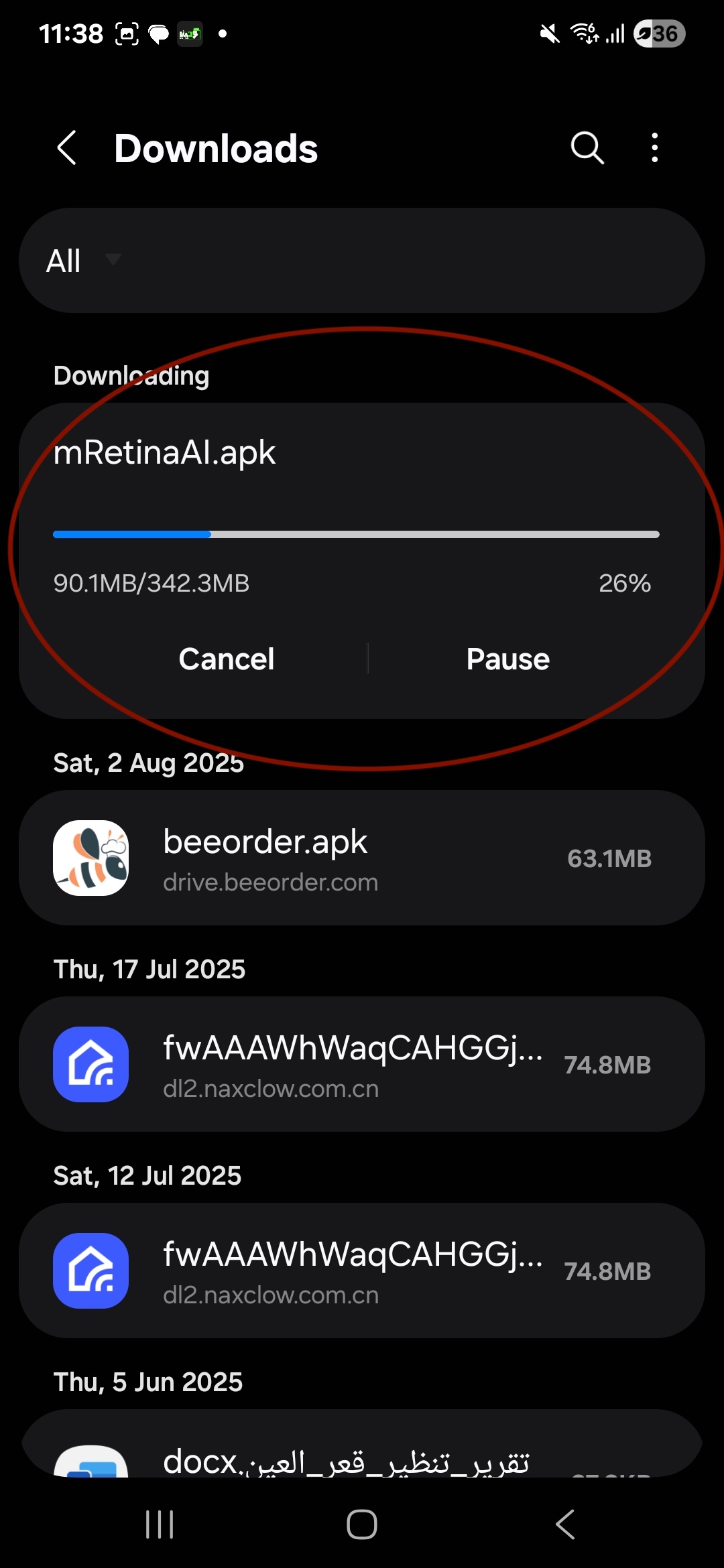
  2. Let the download finish. Watch the progress in your Downloads manager and wait for it to reach 100%. Don't cancel or pause before it completes.
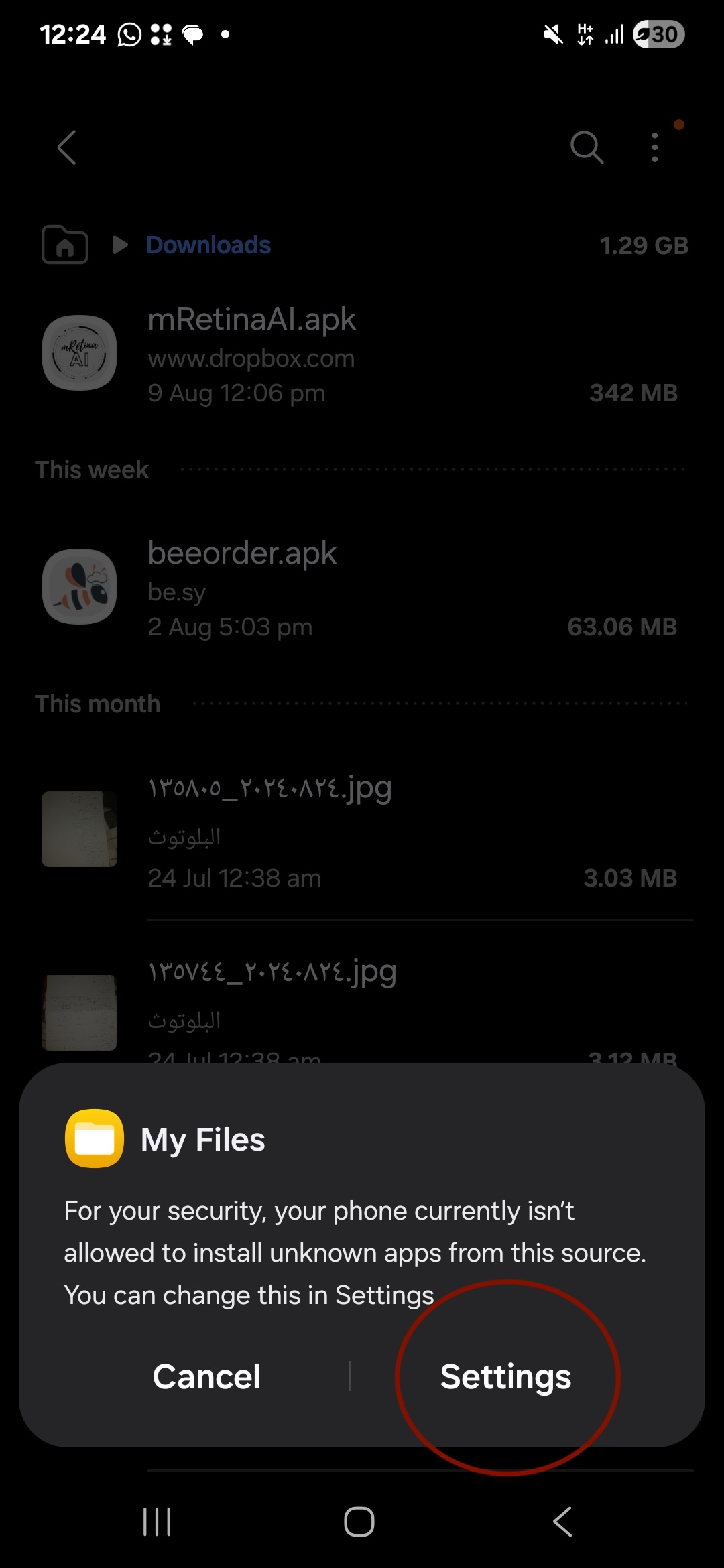
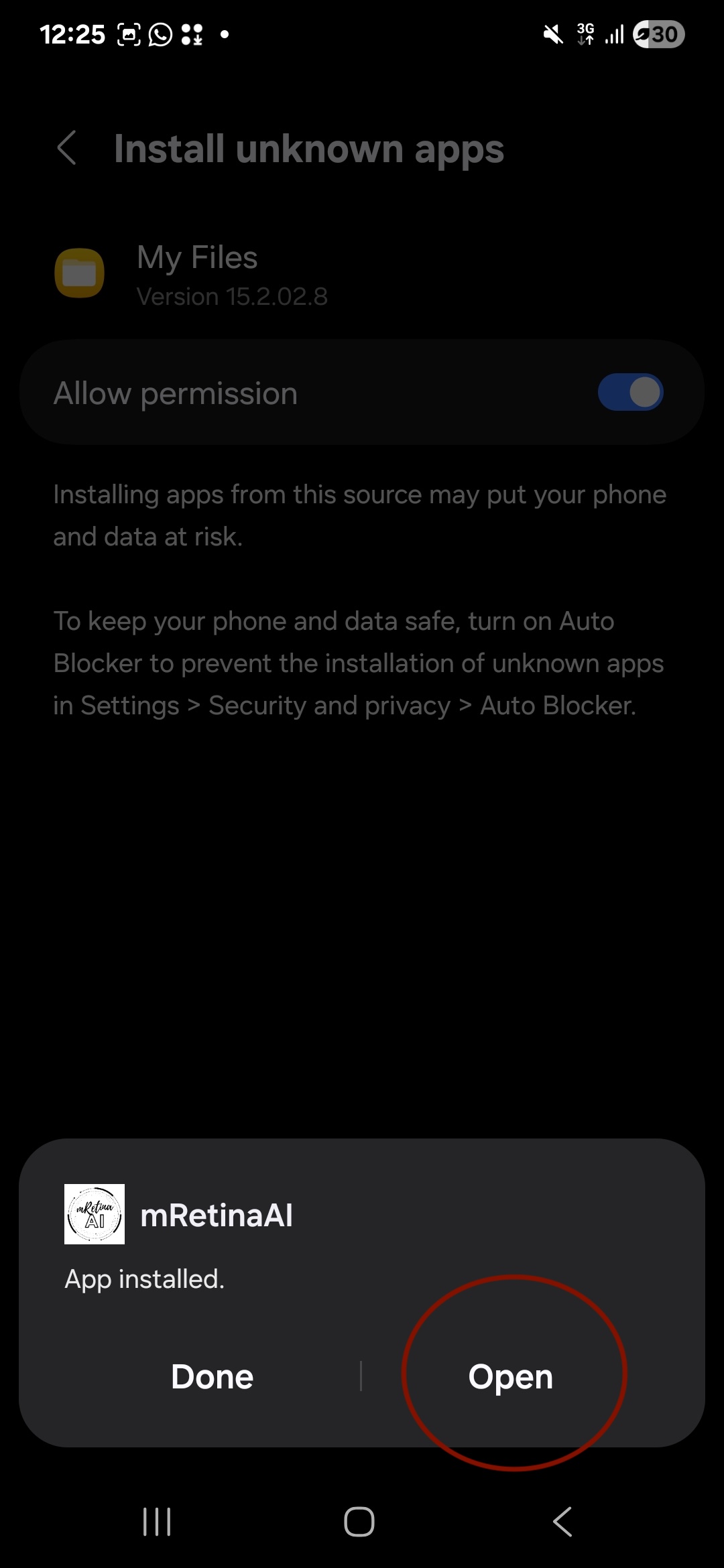
  3. Allow installation from My Files. Open the APK from your file manager. Android will show a security warning (unknown source). Tap Settings on that prompt.
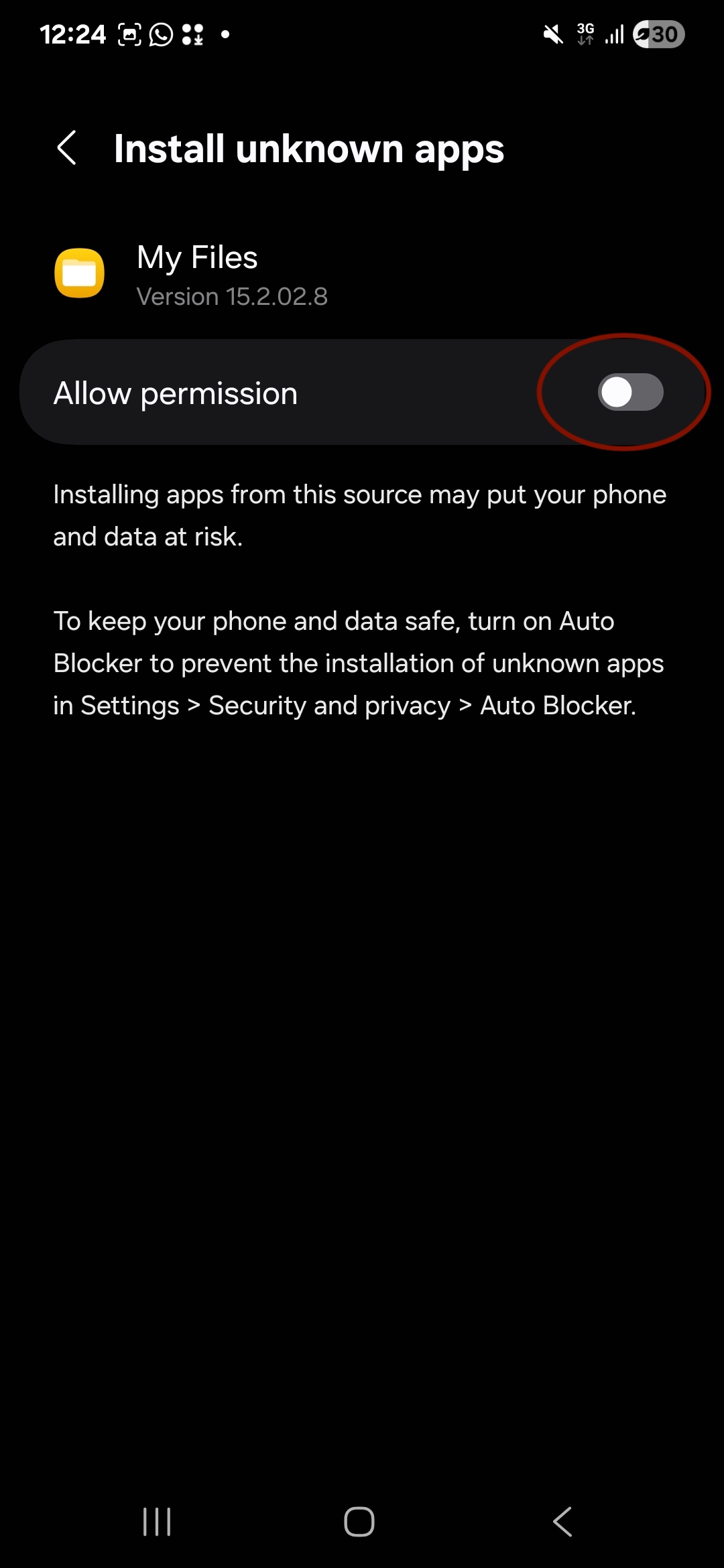
  4. Enable permission. On the "Install unknown apps" screen for My Files, turn on Allow so your phone can install the app.
  5. Open the installed app. After permission is granted, the installer completes and reports that mRetinaAI is installed. Tap Open to launch now (instead of Done).
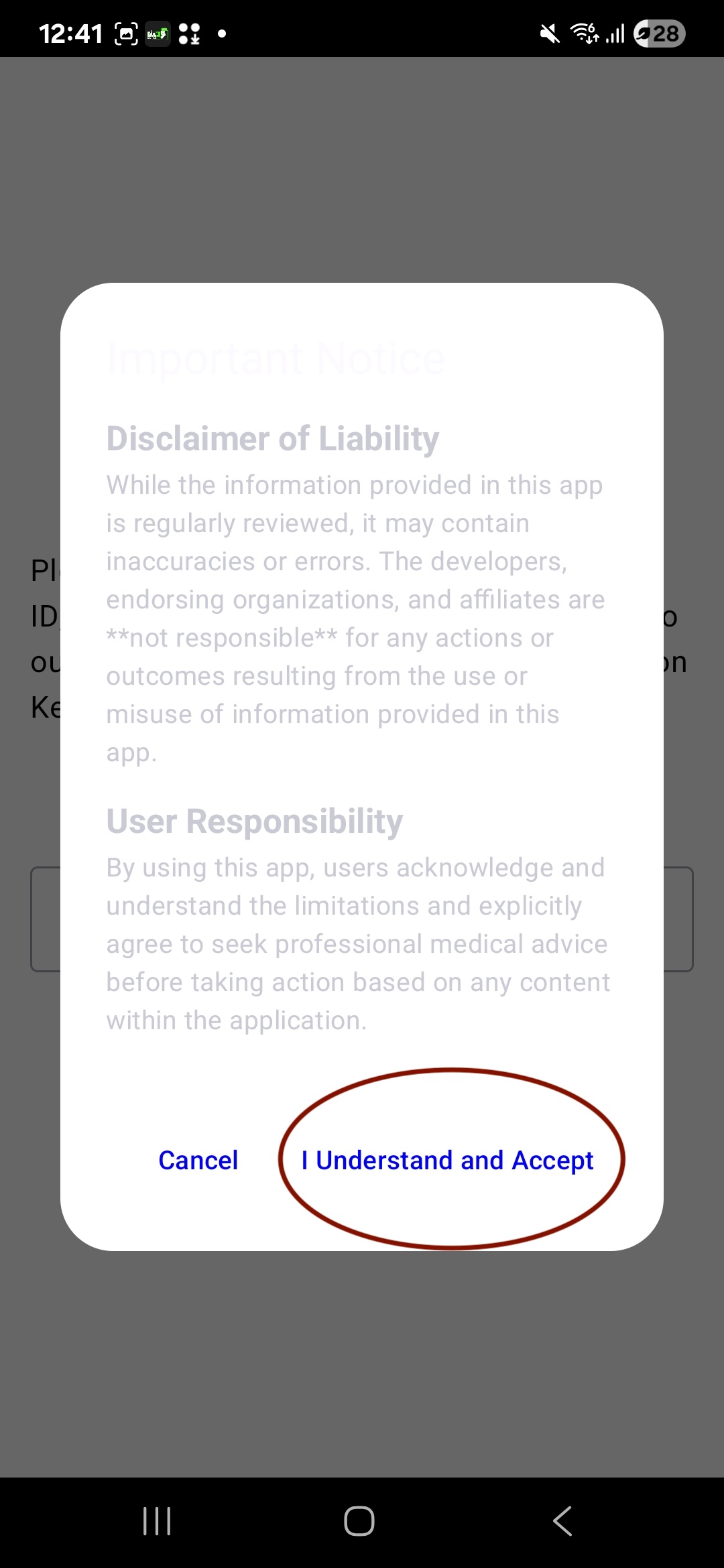
  6. Accept the disclaimer. On first launch, an Important Notice appears. Tap I Understand and Accept to proceed.
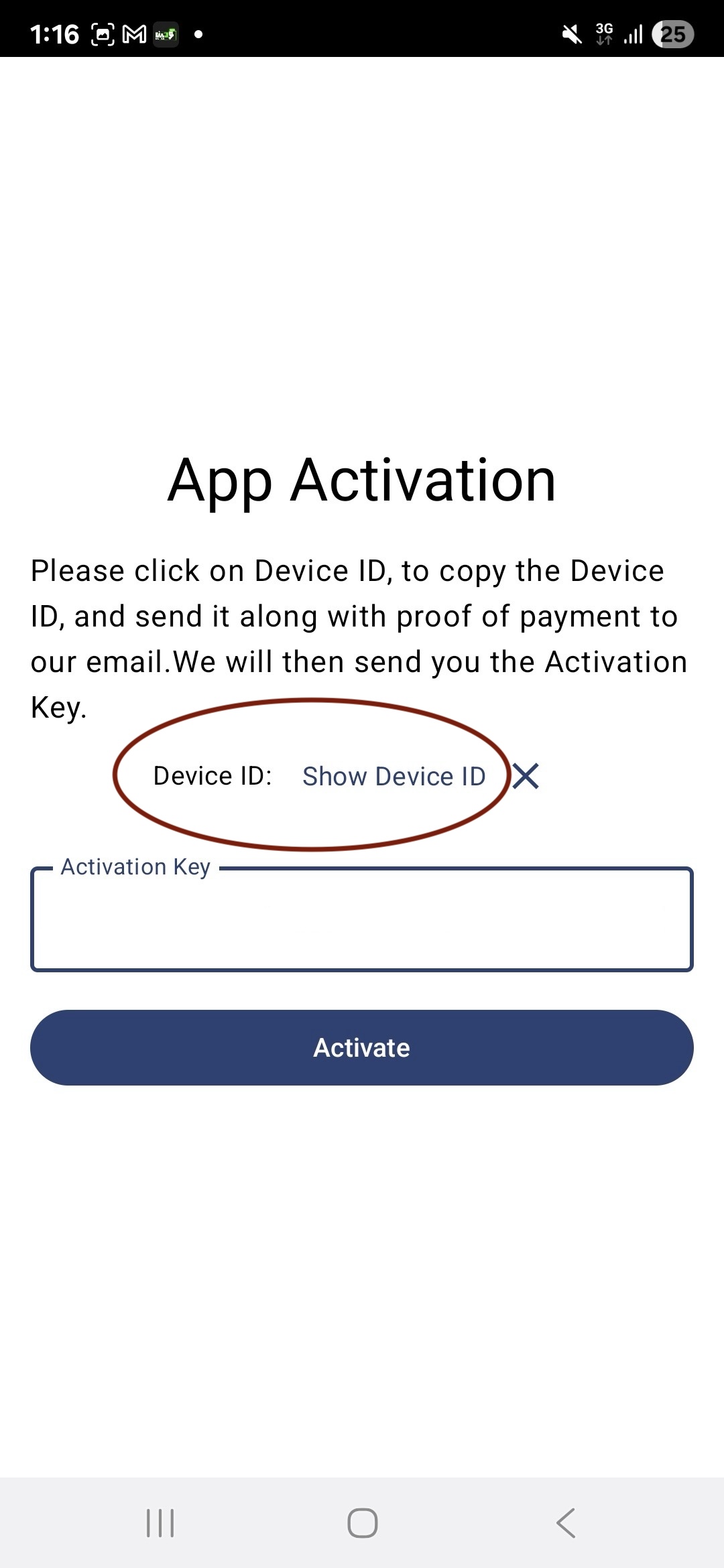
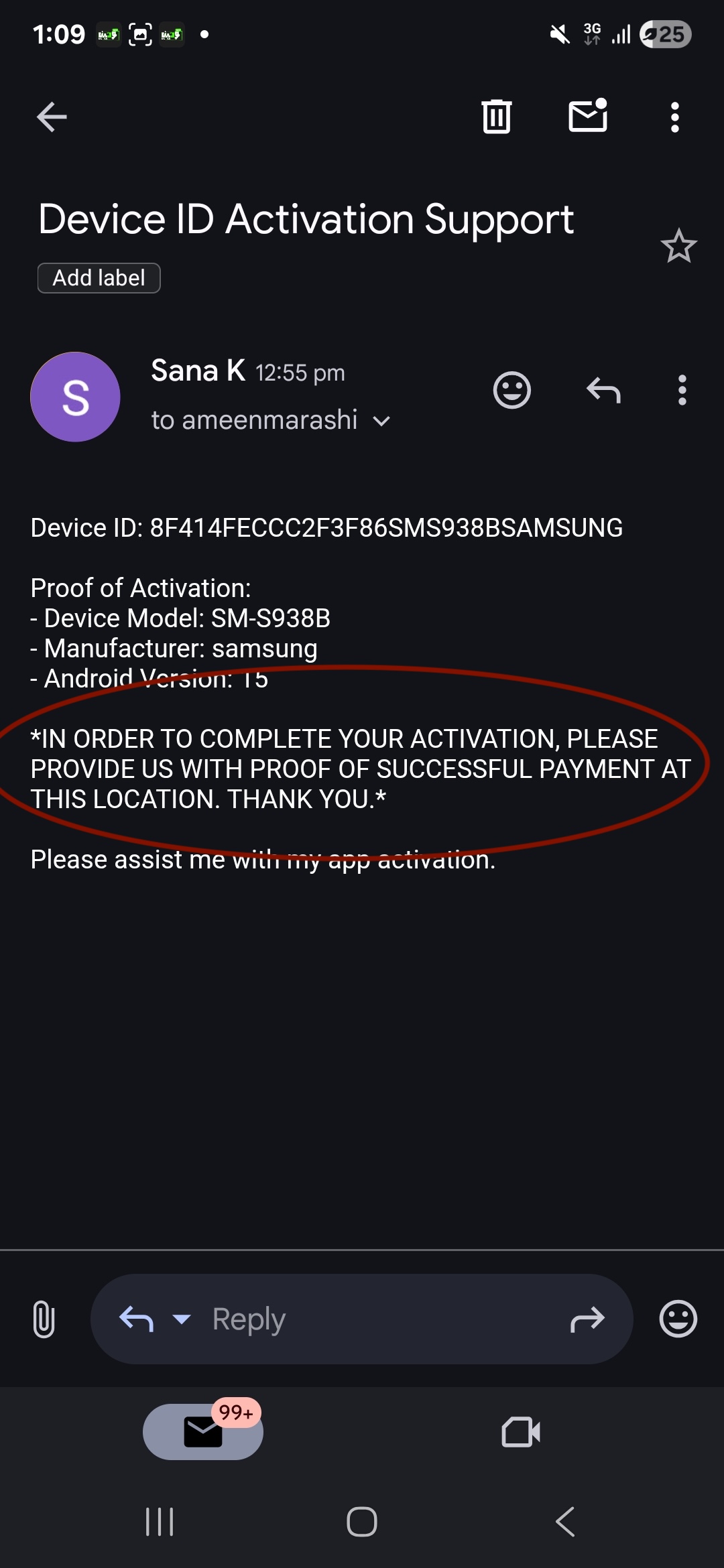
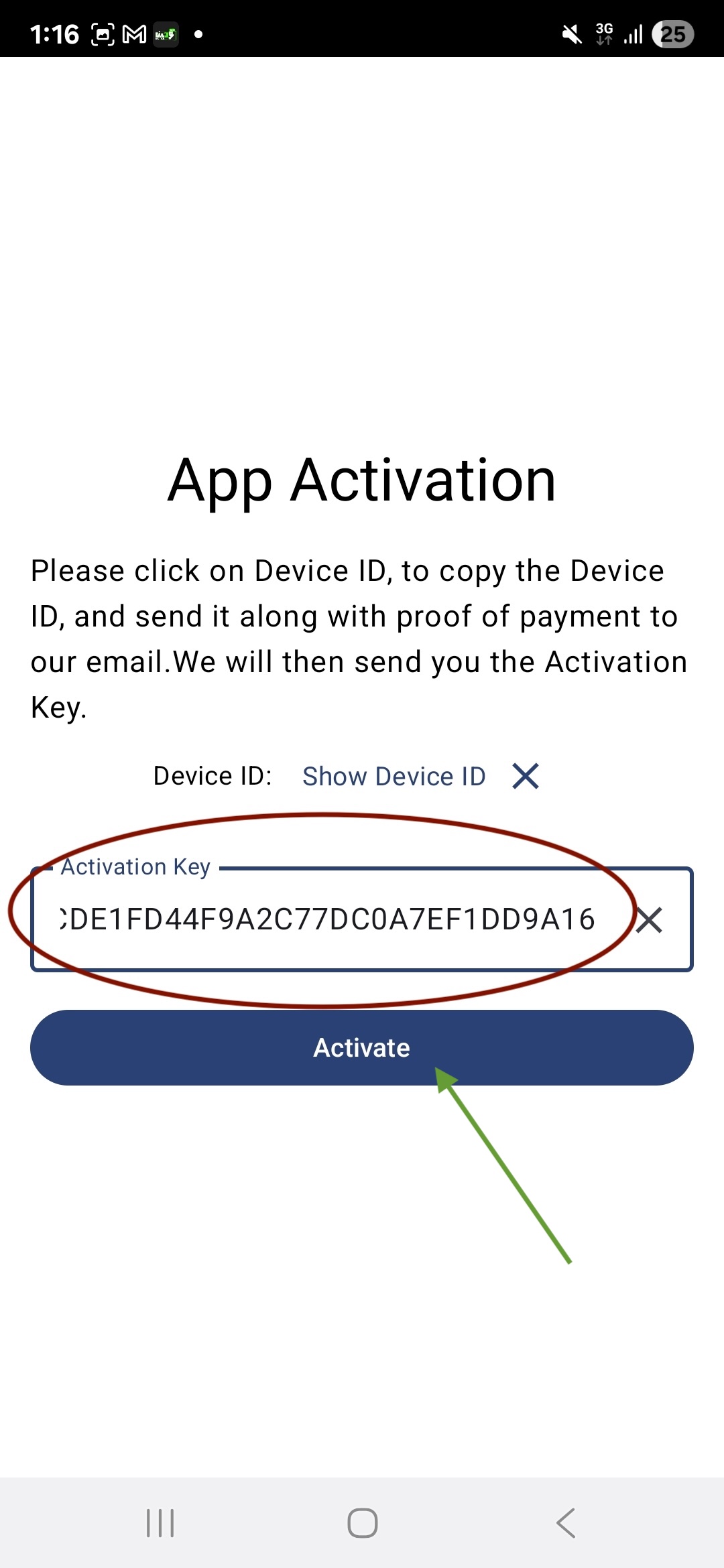
  7. Copy your Device ID. In the app's Activation screen, tap Show Device ID to copy it to the clipboard. Don't tap Activate yet.
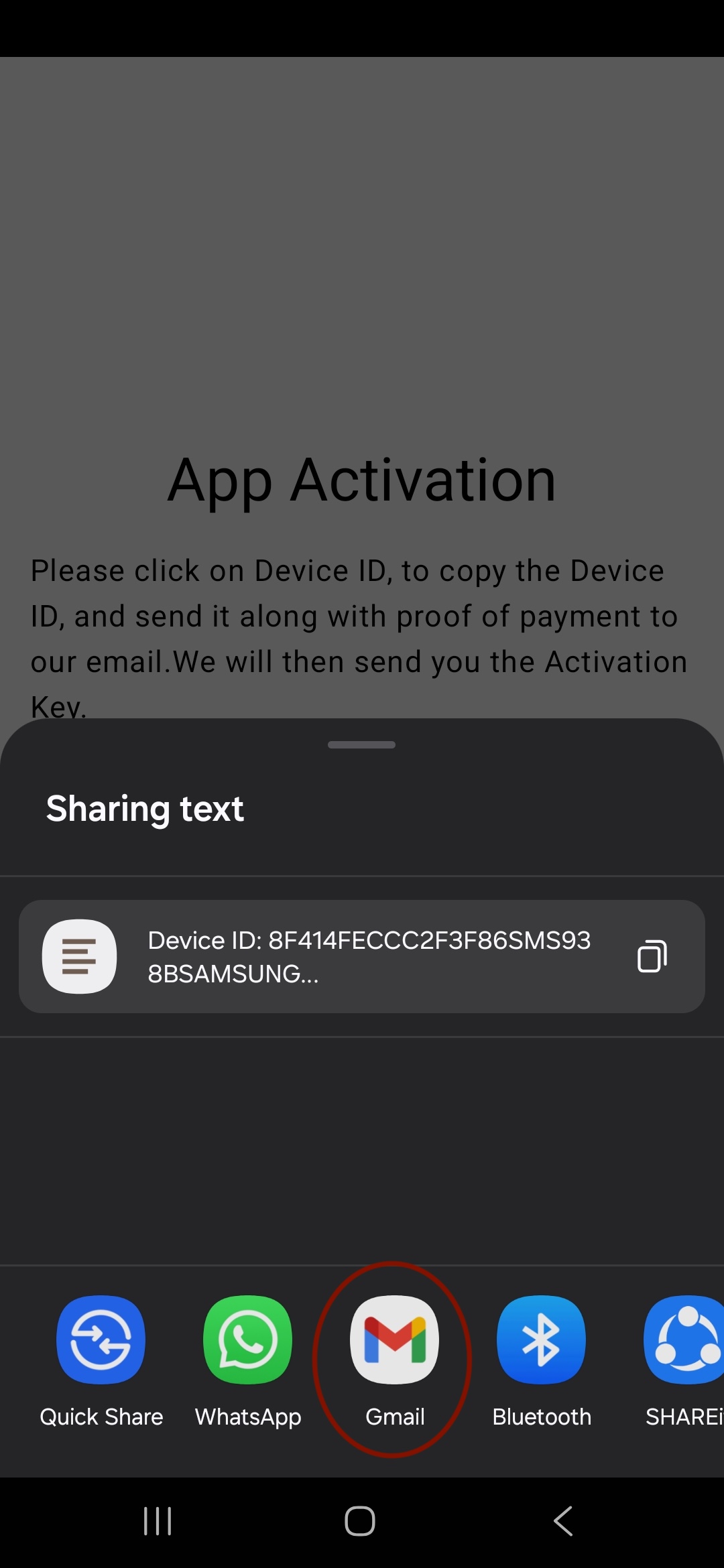
  8. Android will show a sharing sheet. Choose your default email app to compose an email to the developer, or you can manually email the copied Device ID along with proof of payment to ameenmarashi@hotmail.com.
  9. Send activation request. Include both your Device ID and proof of payment in the email.
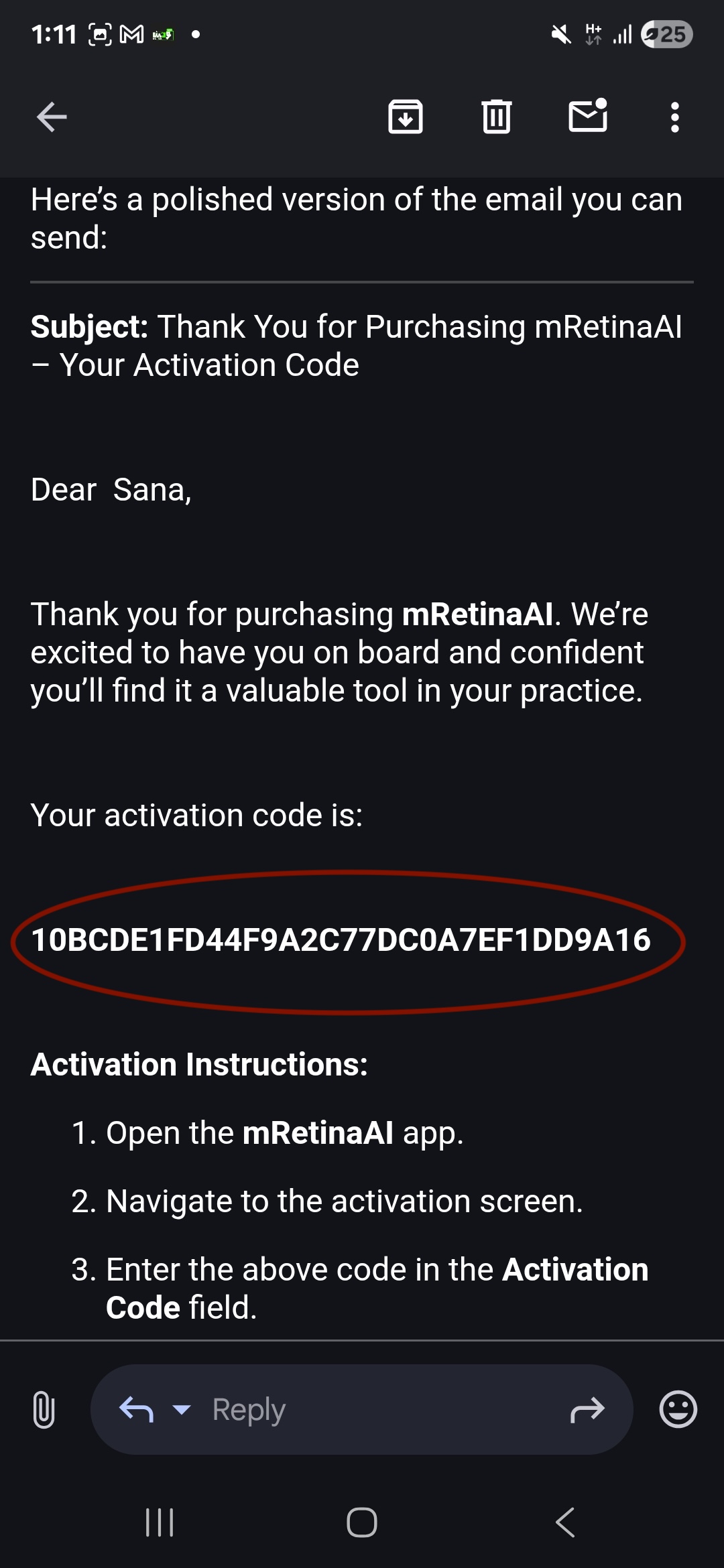
  10. Receive your activation key. You'll get the required activation code by email after your request is processed.
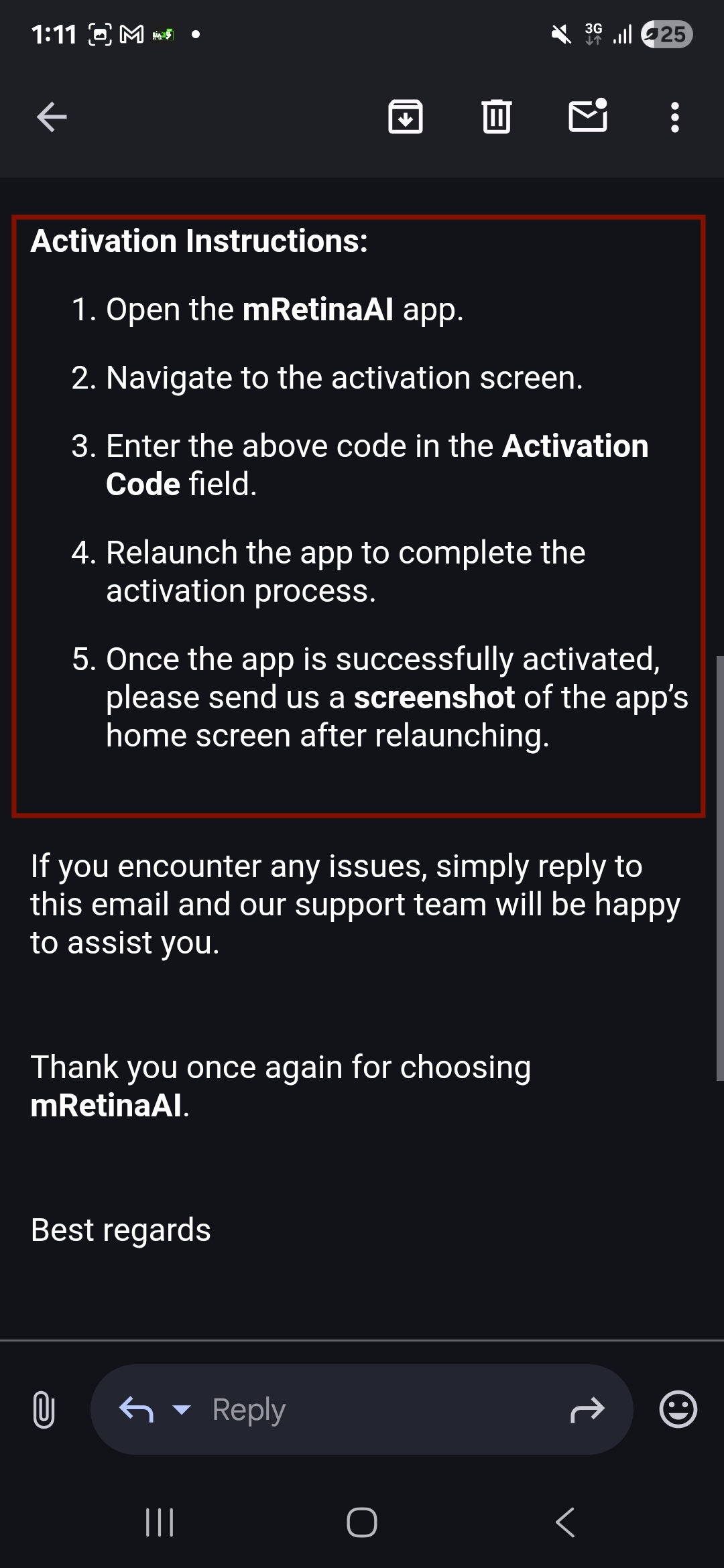
  11. Follow the activation steps in the email. Open mRetinaAI, go to Activation, enter the code, relaunch the app, then send a screenshot of the home screen once activation is complete.
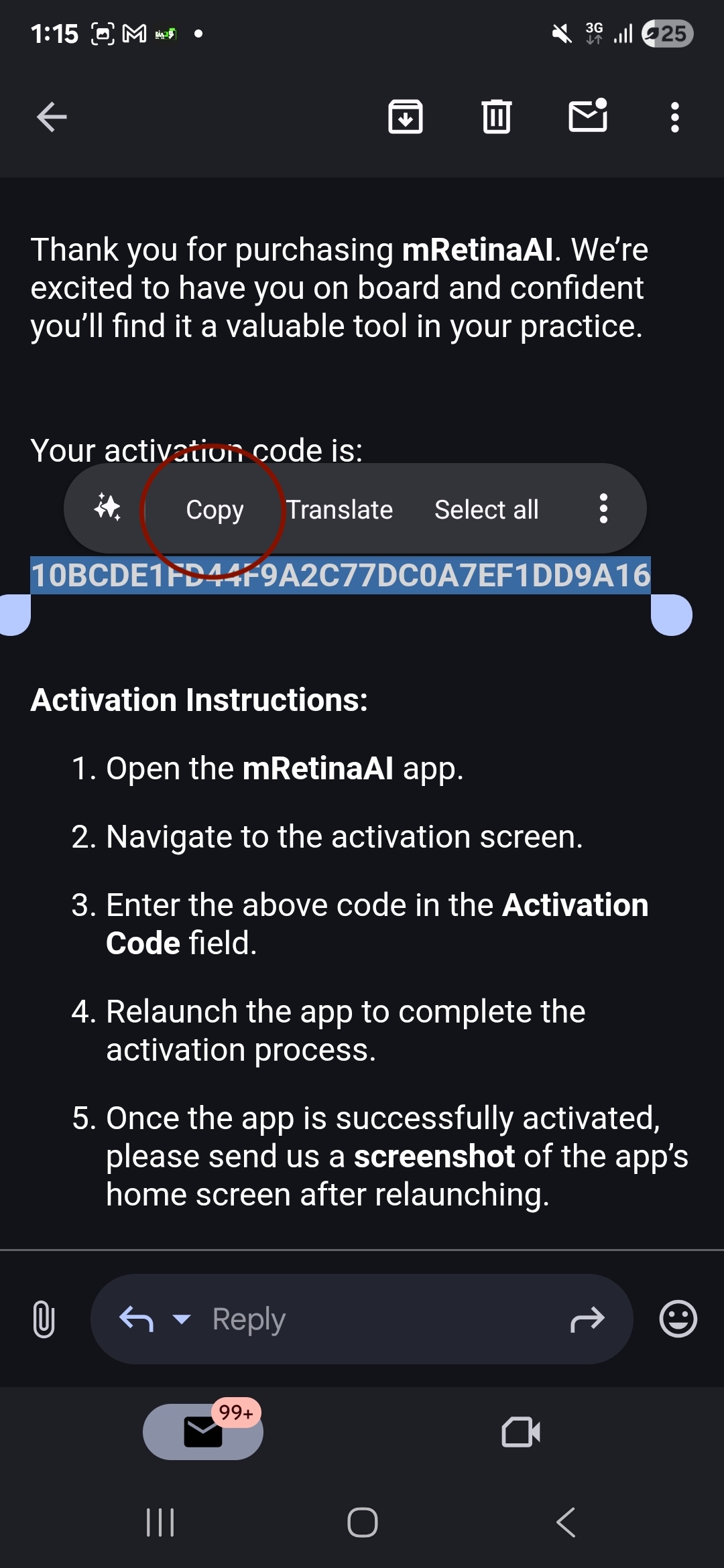
  12. Copy your activation code. Long‑press the code in the email and choose Copy to avoid typos.
  13. Paste the code in the app and activate. Open mRetinaAI app on your phone, return to the App Activation screen, paste the activation code into the Activation Key field, and tap Activate.
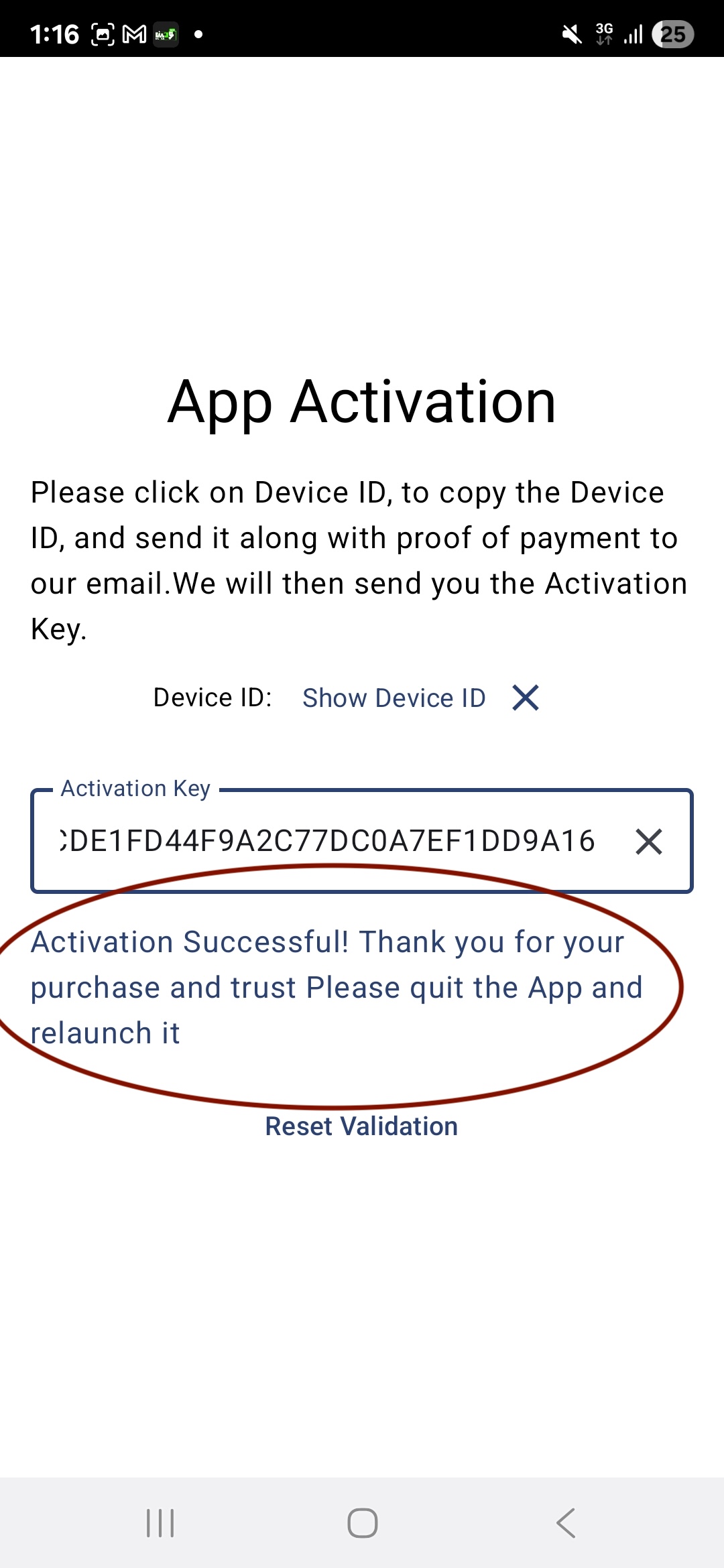
  14. Look for the success message. After you press Activate, the app should display "Activation Successful! Thank you for your purchase and trust. Please quit the App and relaunch it." This confirms that the activation was processed correctly.
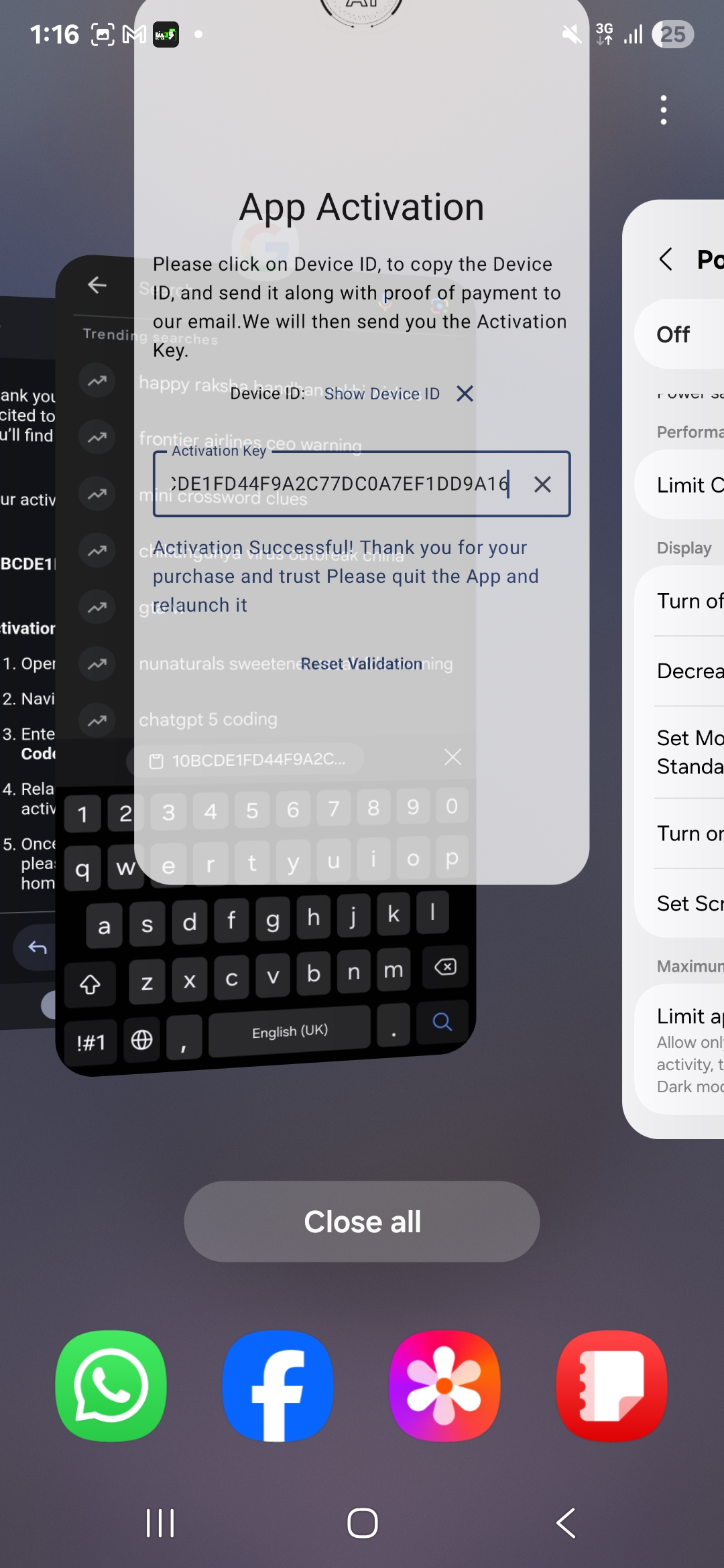
  15. Close the app completely. Use your phone's multitasking view to swipe away mRetinaAI app or tap Close all. This ensures the app restarts cleanly with the new activation status.
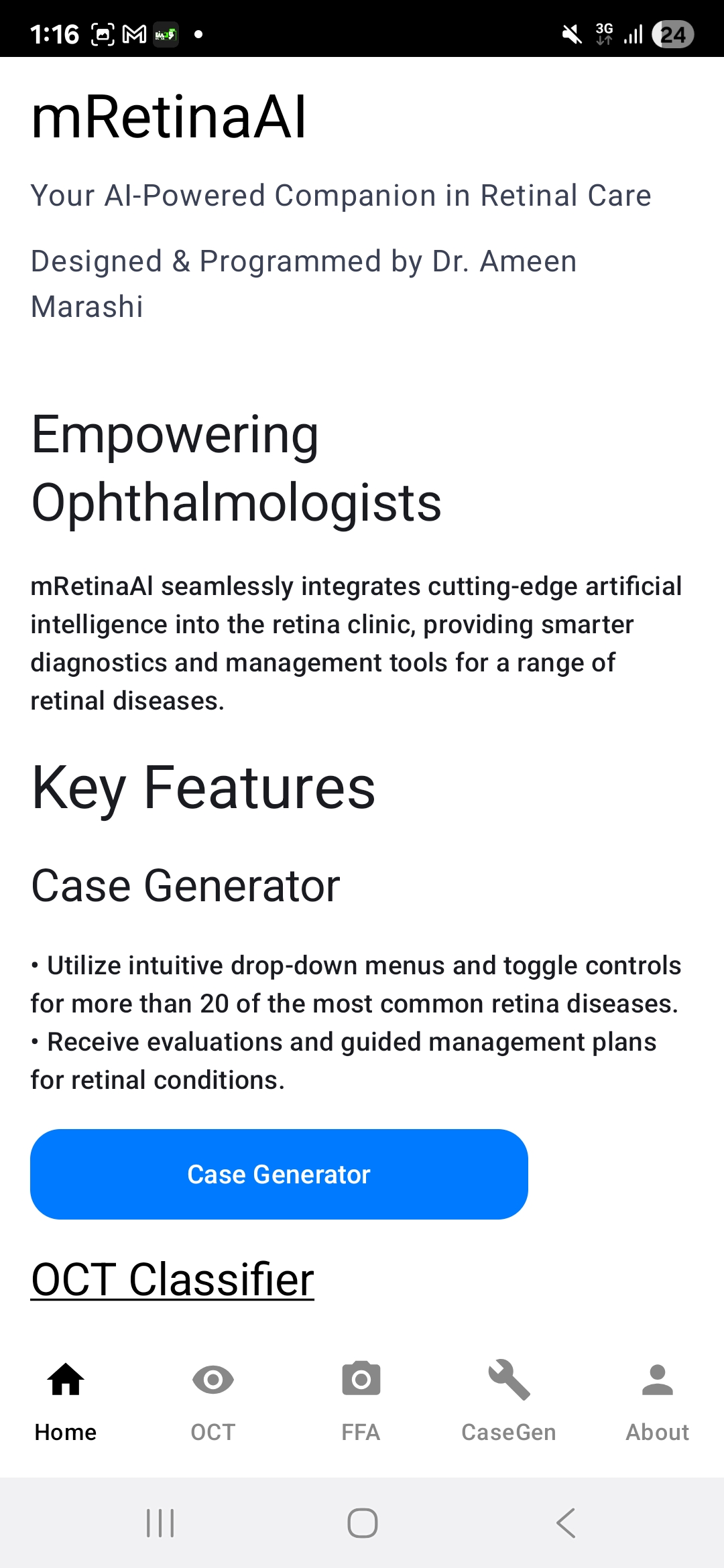
  16. Relaunch mRetinaAI and verify. Open the app again. You should now be taken to the main home screen featuring options like Case Generator, OCT Classifier, FFA, etc. Take a screenshot of this home page and email it to ameenmarashi@hotmail.com as proof of successful activation, as requested in their instructions.

📋 Requirements

  • Android 9.0 (Pie) or later recommended.
  • Minimum 3–4 GB RAM; 64‑bit CPU for best performance.
  • Camera access for imaging workflows (optional).
  • Storage space to save images and cases locally.

⚠️ Important

  • Offline by design: No cloud processing; data stays on device.
  • Single‑device license: Tied to your Device ID.
  • No refunds after activation (see License & Refund Disclaimer).

Troubleshooting & FAQ

"Install blocked" or "Unknown apps not allowed"

Go to Settings → Security → Install unknown apps (or Apps → your browser → Allow from this source), then retry installing the APK.

Activation didn't work

Double‑check the Device ID you submitted during purchase. Licenses are bound to the Device ID — if it changed (e.g., device reset), you'll need a new license or a reissue per your licensing terms.

Performance tips

Close background apps, ensure adequate free storage, and keep your device updated to the latest Android version. For best results, use a 64‑bit device with 3–4 GB RAM or more.

Can I move my license to a new device?

Licenses are tied to the Device ID and are intended for a single device. If your Device ID changes (e.g., replacement or full reset), a new license purchase may be required.

Ready to install?

Download the Android app, review the privacy policy, or purchase a license to activate on your device.

Elevate Your Practice

Beyond clinical tools, master retina with video video courses, digital textbooks, and clinical manuscripts.