MACOS

Download mRetinaAI for macOS

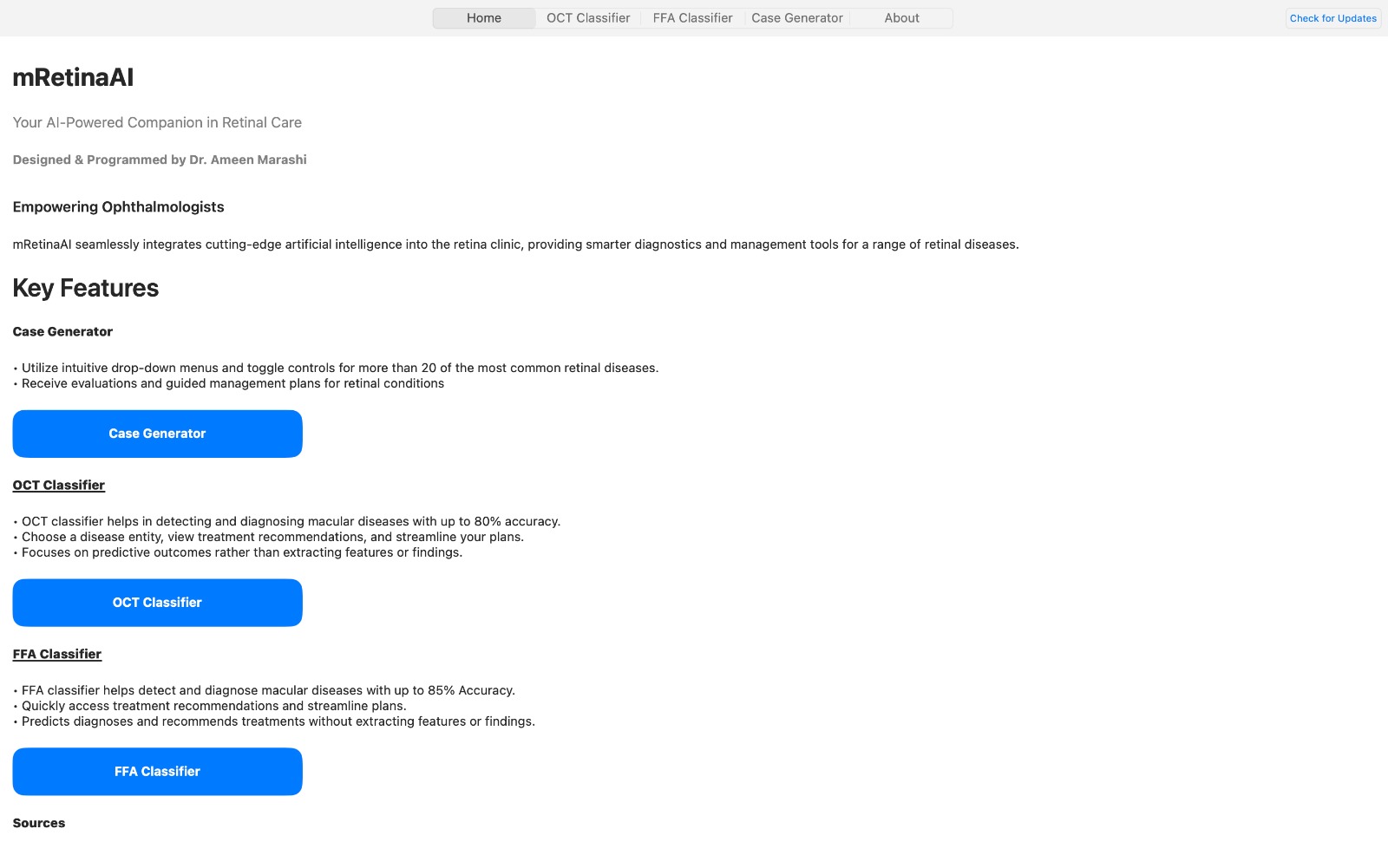
On-device OCT & FFA decision support, case generation, and offline privacy — now on macOS.

All processing happens locally on your Mac — no cloud, no patient data upload.
What's inside

mRetinaAI for macOS delivers the same offline, clinic-ready toolkit — optimized for fast chair-time workflows and private, on-device processing.
Case Generator

  • Build structured cases across 20+ macular entities with guided fields and ready-to-share assessments.
  • Generate succinct plans you can adjust in seconds and manage patients efficiently.

OCT Classifier

  • On-device prediction focused on outcomes to support triage and planning.
  • Condition-level performance: DME 72.4%, RVO 85.3%, AMD 83.9%, VMA 80.7%, Pachychoroid 78.6%, HRD 66.7%.

FFA Classifier

  • Offline angiography support with up to 84.5% overall accuracy.
  • Examples: DR 75.0%, RVO 96.1%, AMD 82.9%, CSCR 84.9%.
On-device Offline Clinic-ready No cloud

🍎 How to Install & Activate (macOS)

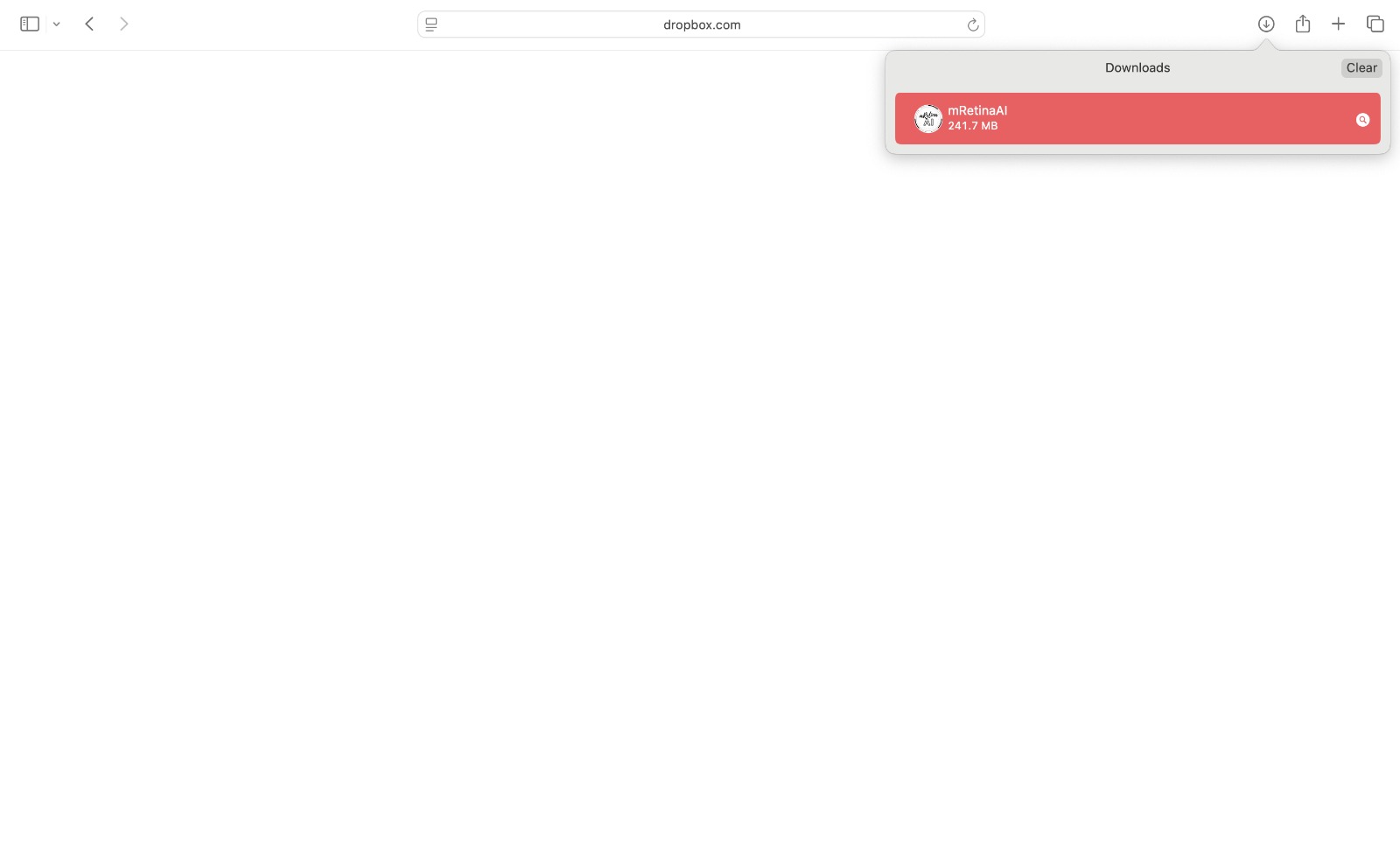
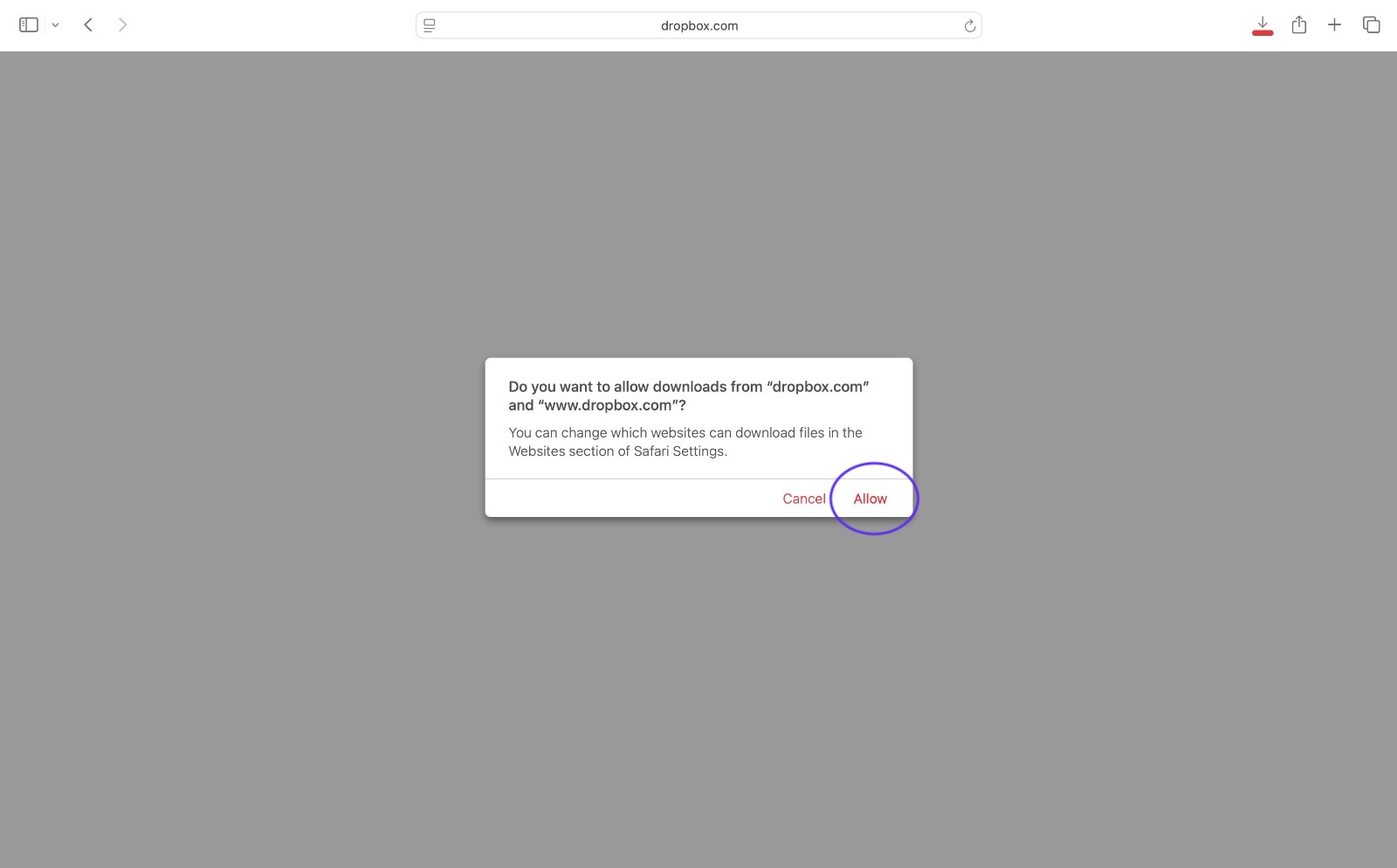
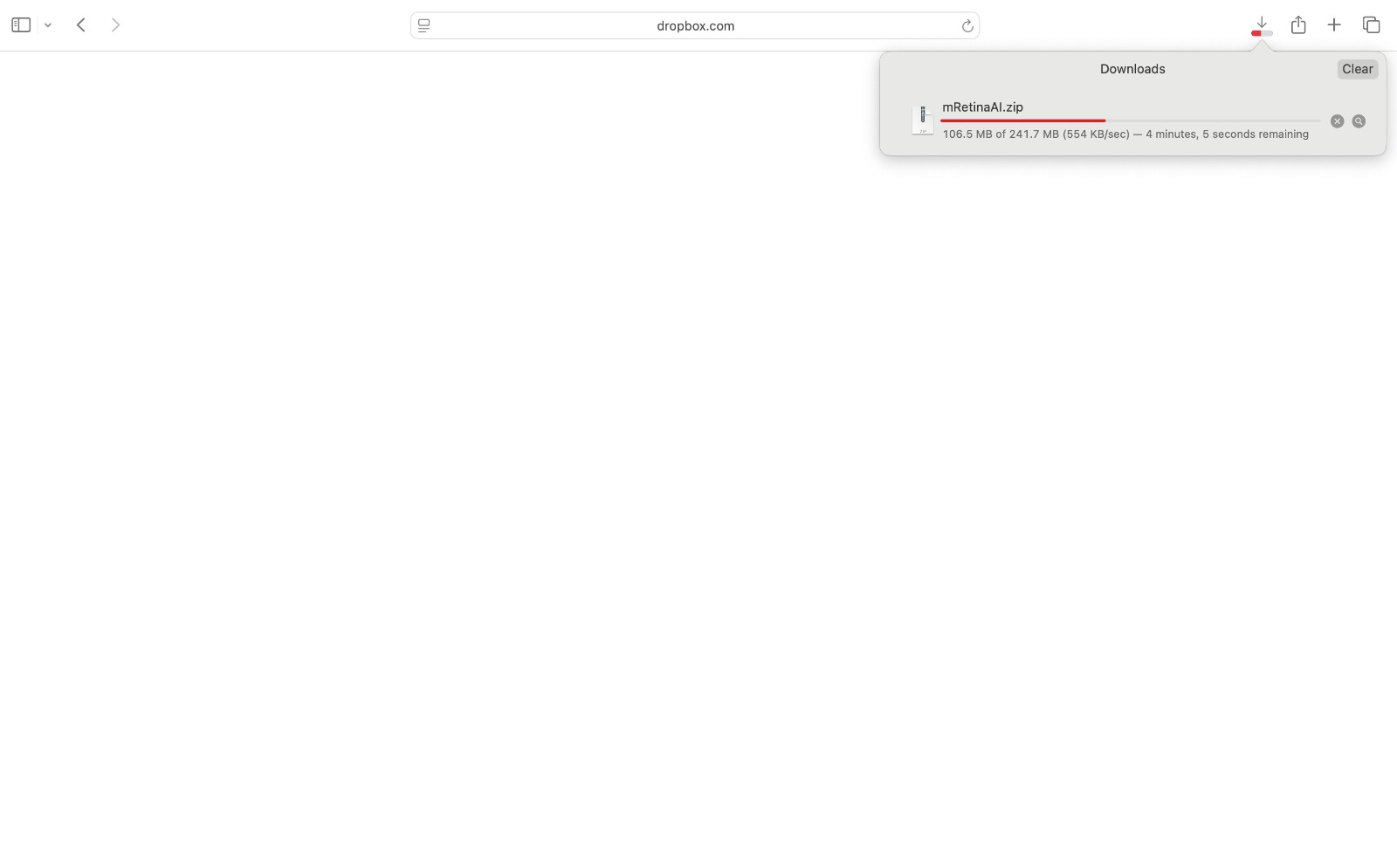
  1. Allow the download (Safari). On Dropbox, when Safari asks "Do you want to allow downloads…", click Allow.
  2. Let the file finish downloading. Watch mRetinaAI.zip in Safari's Downloads panel and wait until it reaches 100%.
  3. Open the download. Click the item in the Downloads list to reveal/open it (macOS will extract the app if needed).
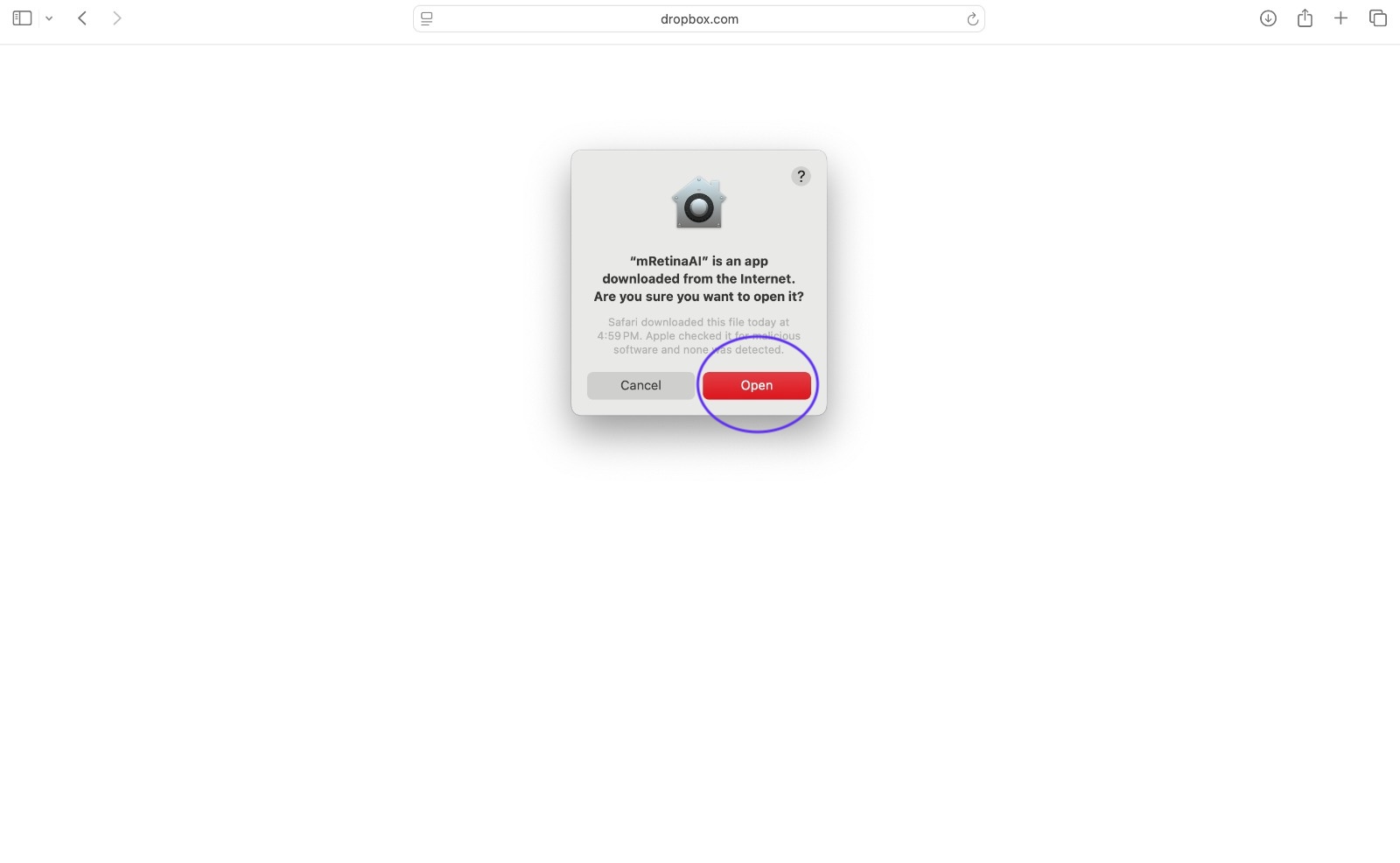
  4. Bypass the Internet download warning. If you see "mRetinaAI is an app downloaded from the Internet", click Open.
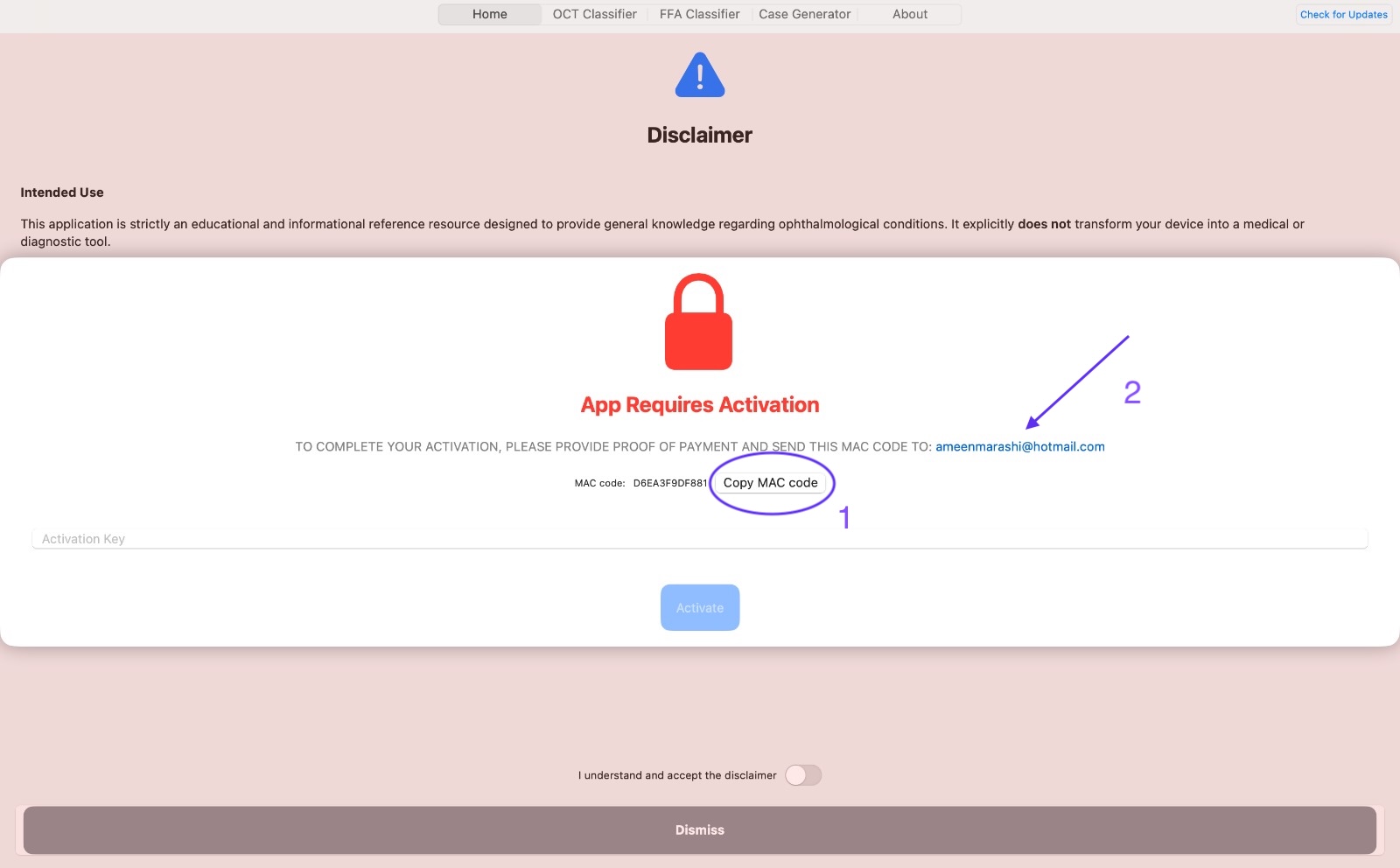
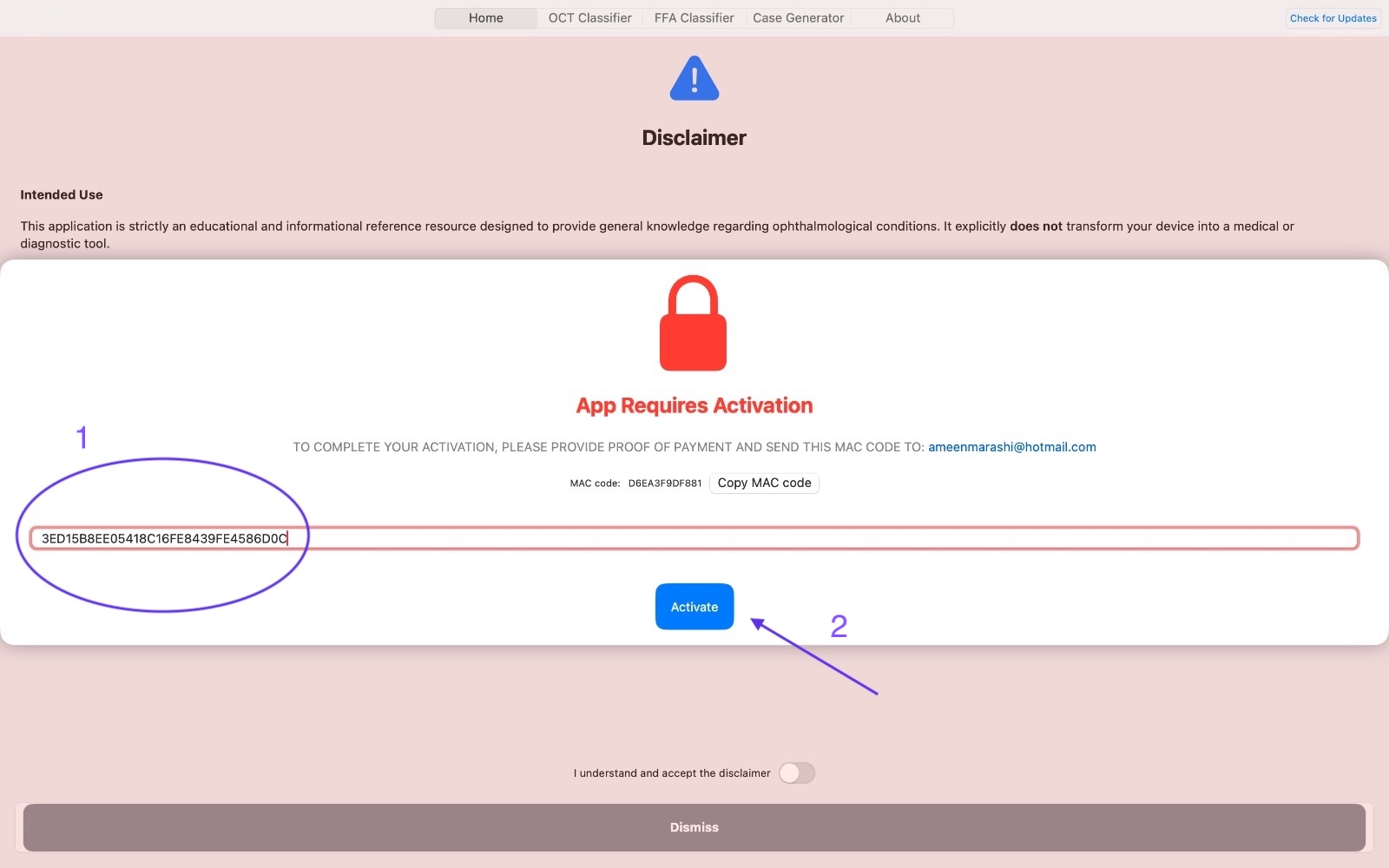
  5. Copy your MAC code. On first launch you'll see App Requires Activation. Click Copy MAC code.
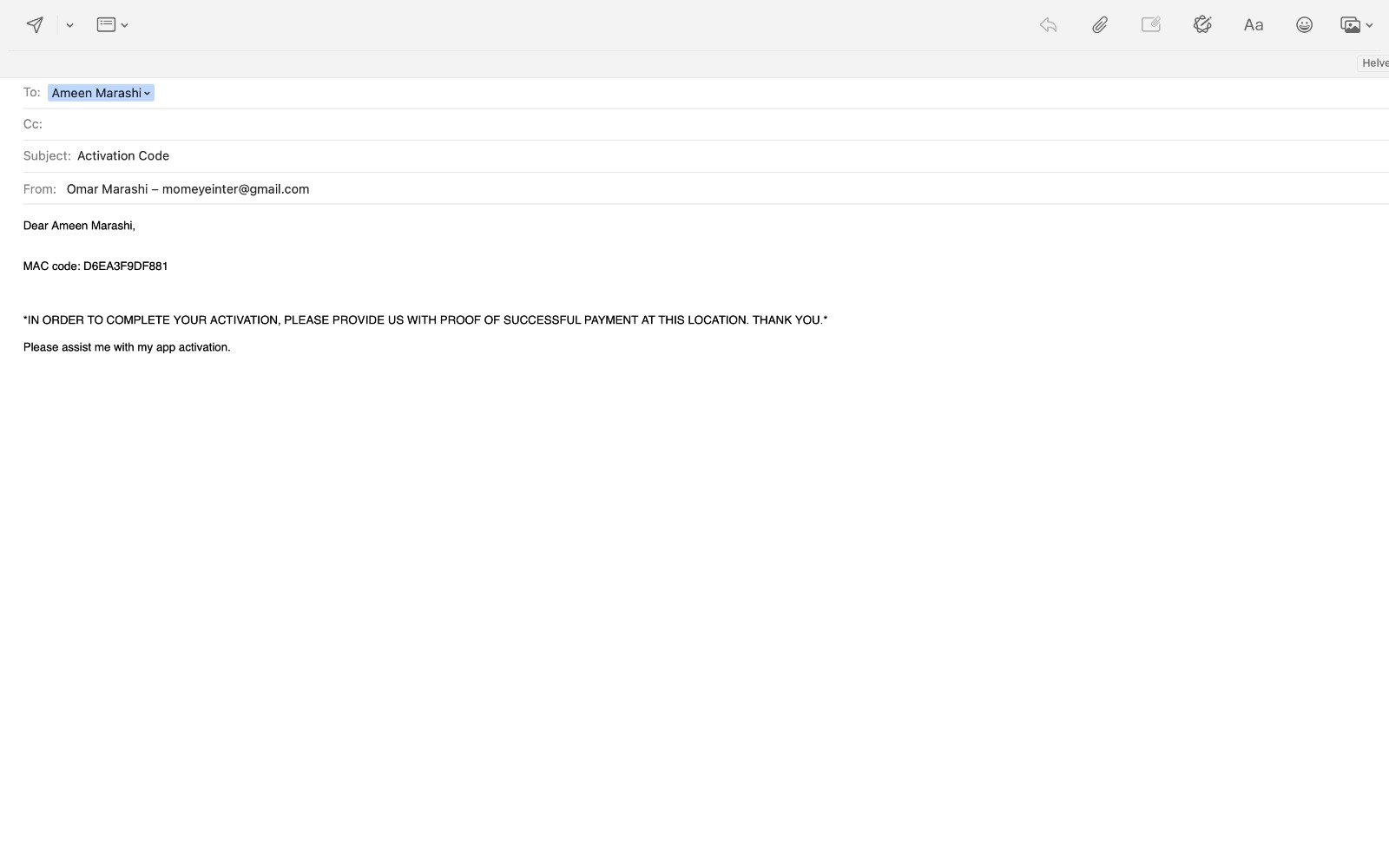
  6. Email the MAC code + proof of payment. Email ameenmarashi@hotmail.com with your MAC code and proof of payment.
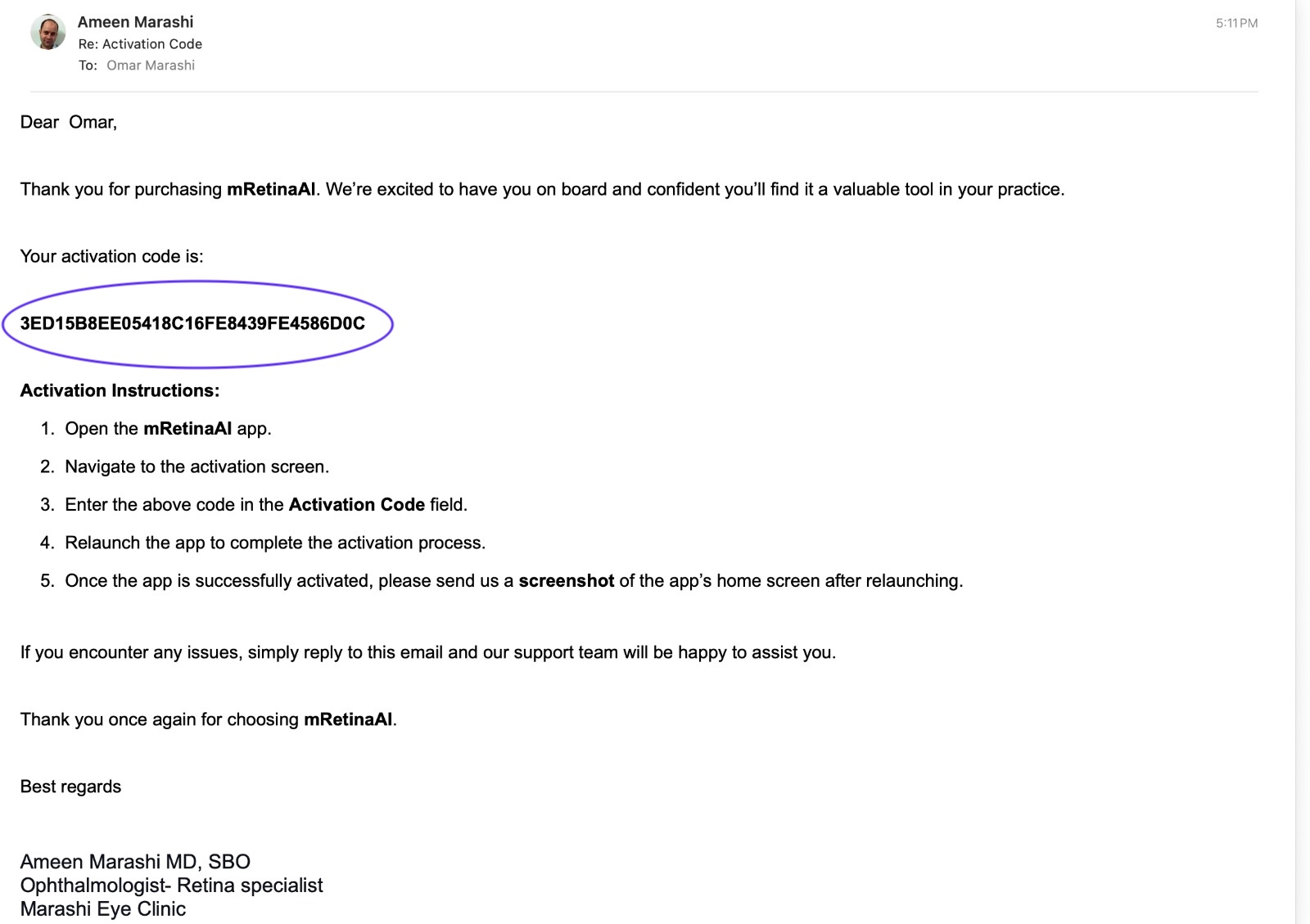
  7. Check your inbox for the Activation Code. You'll receive a reply with your unique activation code.
  8. Activate inside the app. Return to mRetinaAI, paste the code into Activation Key, then click Activate.
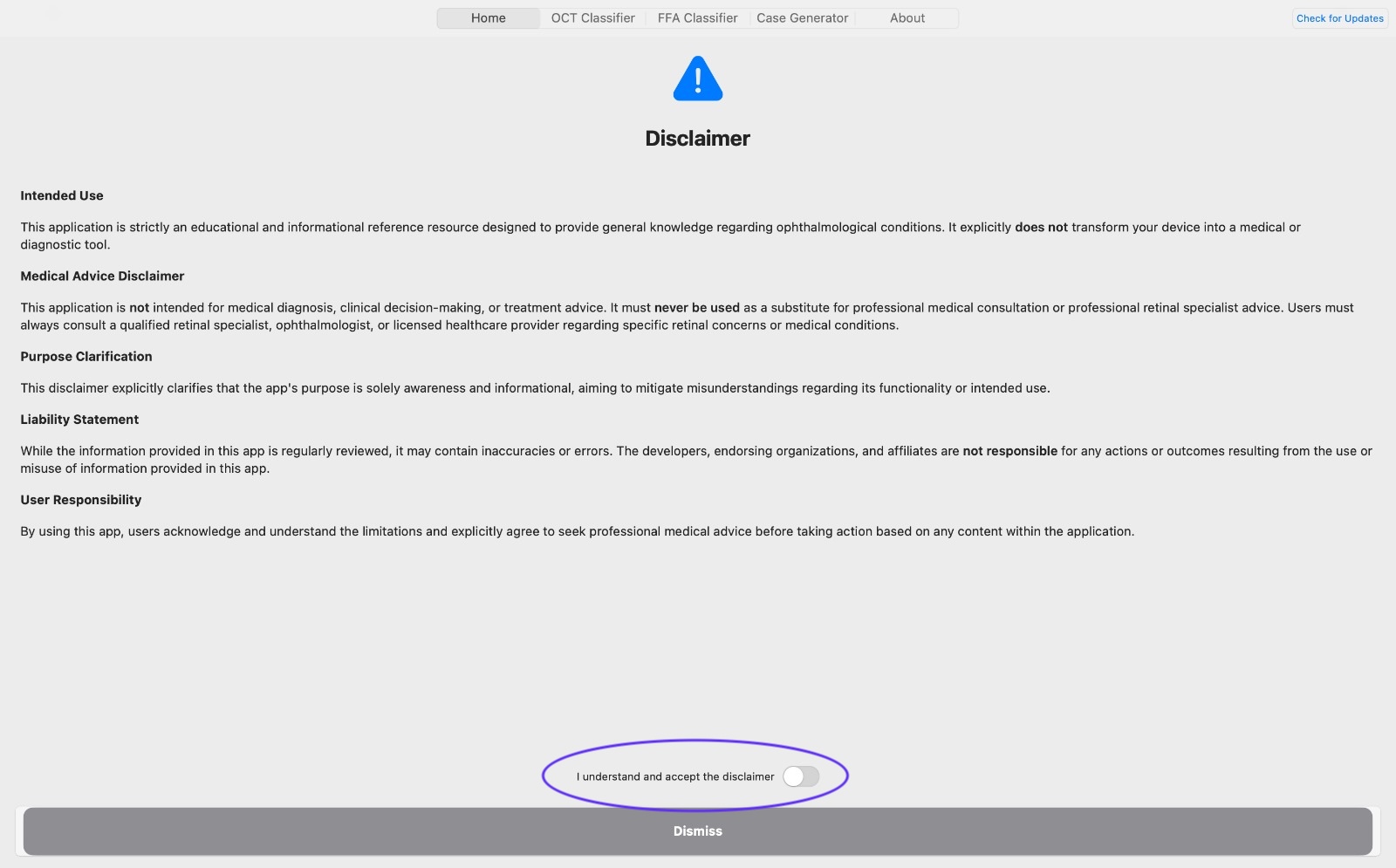
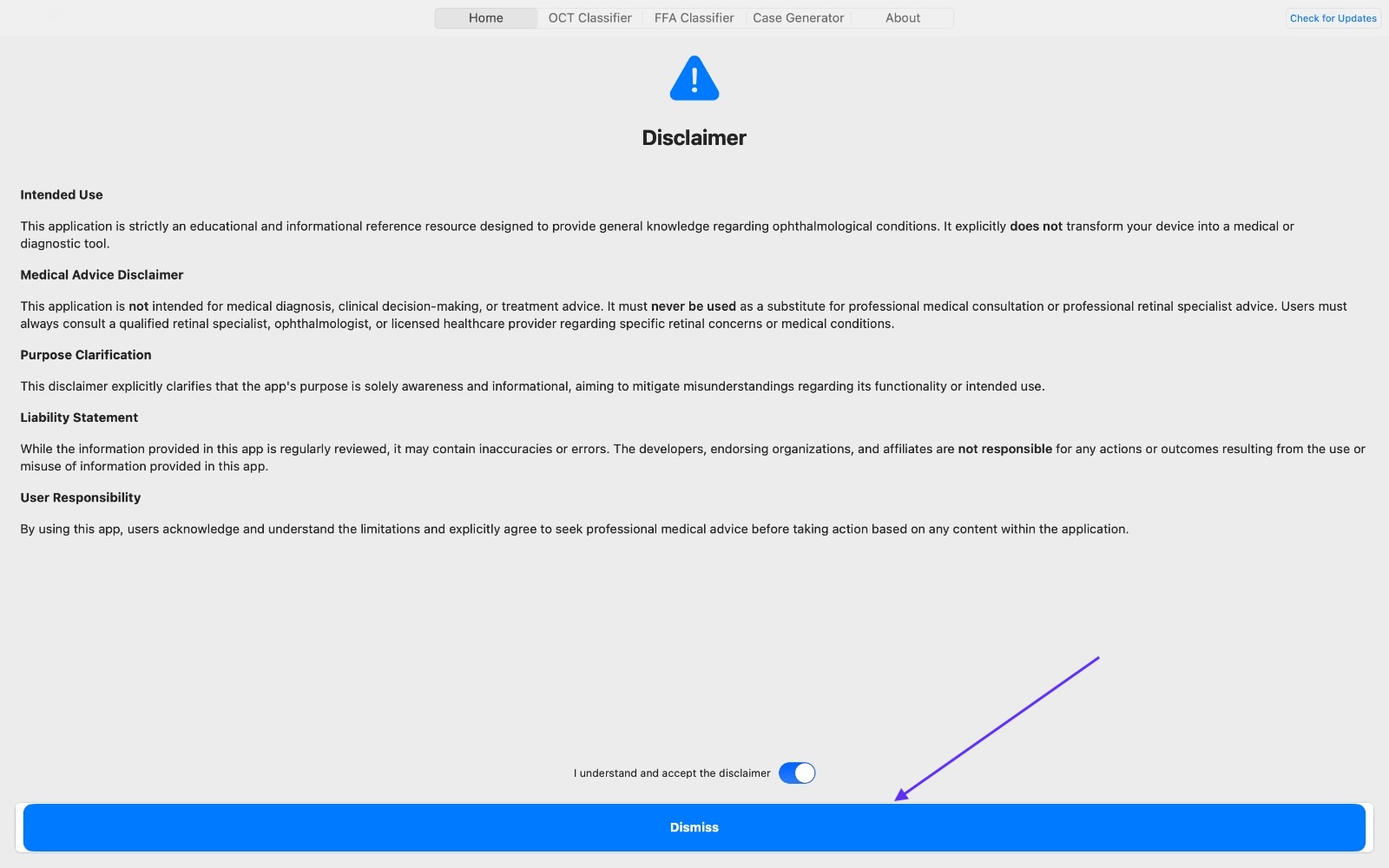
  9. Accept the disclaimer. Toggle I understand and accept the disclaimer and click Dismiss.
  10. Relaunch & verify. Quit the app completely, reopen it, confirm the Home screen (Case Generator, OCT Classifier, FFA, etc.). Please screenshot the Home screen and email it to ameenmarashi@hotmail.com to confirm activation.

📋 Requirements

  • macOS 13.5 or later recommended
  • Apple Silicon preferred; minimum 8 GB RAM
  • Enough storage for local images and cases

⚠️ Important

  • Offline by design: no cloud processing — data stays on your Mac
  • Single-device license: tied to your MAC code
  • No refunds after activation (see License & Refund Disclaimer)

Troubleshooting & FAQ

Activation didn't work

Double-check the MAC Code you submitted during purchase. Licenses are bound to the MAC Code — if it changed (e.g., device reset), you'll need a new license or a reissue per your licensing terms.

Performance tips

Close background apps, ensure adequate free storage, and keep your device updated to the latest macOS version. For optimal performance, utilize a MacBook equipped with Apple Silicon technology and a minimum of 8 GB of RAM.

Can I move my license to a new device?

Licenses are tied to the MAC Code and are intended for a single device. If your MAC Code changes (e.g., replacement or full reset), a new license purchase may be required.

Ready to install?

Download the macOS app, review the privacy policy, or purchase a license to activate on your device.

Elevate Your Practice

Beyond clinical tools, master retina with video courses, digital textbooks, and clinical manuscripts.